Book Appointment Now

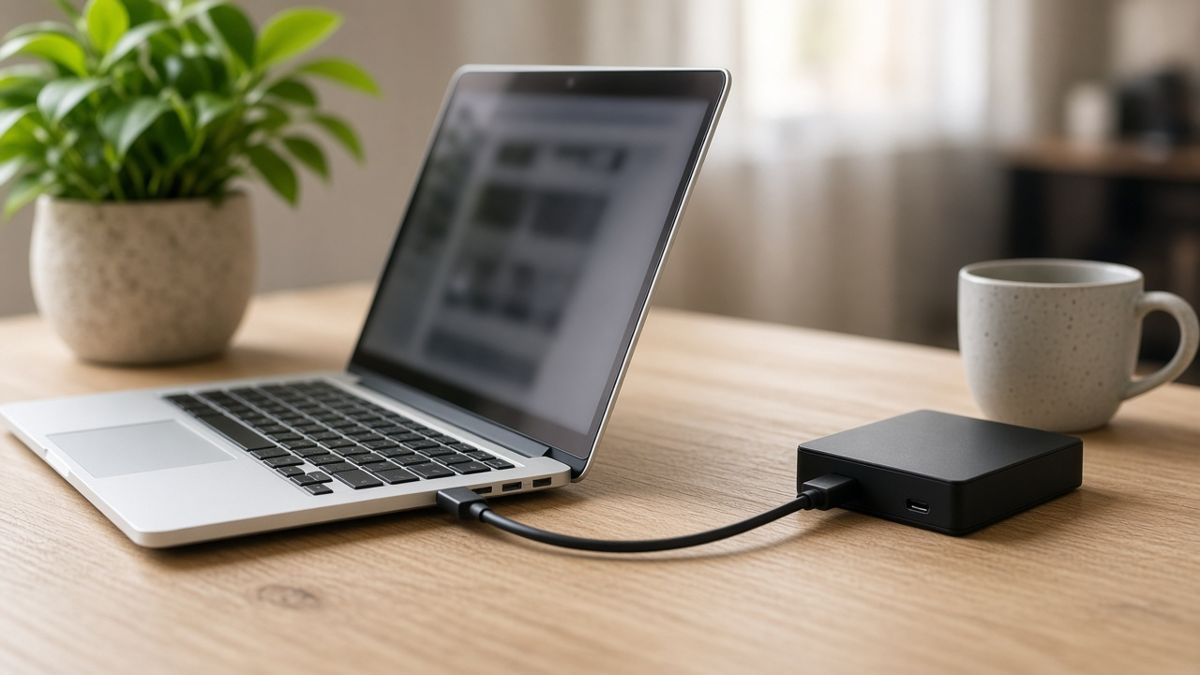
How to Back Up Your Computer (Simple Steps for Windows and Mac)
Most people only think about backups after something goes wrong. A laptop gets dropped, a hard drive dies, or a scam locks up every file. The good news is that it’s easy to back up your computer, and once it’s set up it mostly runs on its own. This guide walks you through simple steps for Windows and Mac, in plain English.
Why you should back up your computer
Your computer holds things you can’t buy again. Think family photos, tax records, work files and years of emails. Hard drives and SSDs do fail, often with no warning at all.
On top of that, laptops get lost, stolen or knocked off the bench. Ransomware and other scams can also lock your files and demand payment. If you have a good backup, all of these become a hassle instead of a disaster.

The simple 3-2-1 backup rule
IT people often talk about the 3-2-1 rule. It sounds technical, but it’s really just common sense:
- 3 copies of your important files (the original plus two backups).
- 2 different types of storage, such as an external drive and the cloud.
- 1 copy kept off-site, so a fire, flood or break-in can’t take everything at once.
For most homes, an external drive plus a cloud service covers all three. You don’t need anything fancy to get started.
How to back up a Windows computer
Windows has backup tools built in, so you can start today. Here’s a simple way to do it:
- Open the Windows Backup app from the Start menu.
- Choose which folders, settings and apps you want to save to your OneDrive account.
- Check you have enough OneDrive space for your files.
- Next, plug in an external drive and set up File History as a second copy.
- Finally, leave the drive plugged in regularly so it can keep your files up to date.
Microsoft explains each step in its guide to backing up and restoring with Windows Backup. The exact menus can change between updates, so it’s worth a quick look.
How to back up a Mac
Macs come with Time Machine, which is one of the easiest backup tools around. Once you turn it on, it backs up in the background while your drive is connected.
- Plug in an external drive with plenty of space.
- Open System Settings, then go to General and Time Machine.
- Add your drive as a backup disk and follow the prompts.
- Then turn on iCloud for Photos and Documents if you’d like an off-site copy too.
Apple’s own guide to backing up your Mac with Time Machine has the full details.
External drive or cloud backup?
Both have strengths, which is why using both works so well.
- External drive: fast to restore and you own it. However, it can fail, and it sits in the same house as your computer.
- Cloud backup: safe from fire, theft and floods. On the other hand, the first backup can take a while on a slow NBN connection.
One tip worth knowing: unplug your external drive when it isn’t backing up. That way, if ransomware ever hits your computer, it can’t reach the drive too. If you’re worried about scams, our guide on how to spot a scam text or phishing email is a good next read.
Backups for small businesses
A business has more to lose. Invoices, customer details and accounts files can be hard to rebuild. So it pays to think a little further ahead.

- Back up every computer, not just the main one.
- Consider a network storage box (NAS) that saves several machines in one place.
- Keep a cloud copy as well, so the office isn’t a single point of failure.
- Write down who checks the backups and how often.
Test your backup so you know it works
A backup you’ve never tested is really just a hope. So after you back up your computer, try to restore one file every couple of months. Pick a photo or a document, bring it back from the backup and open it.
Also check the date of the latest backup. If it’s weeks old, something has stopped working. It’s a small job, but it saves a lot of heartache later.
When to call a pro
Plenty of people can set up a backup on their own. Still, it’s worth getting help in a few situations:
- Your computer is clicking, freezing or won’t start, and you have no backup yet.
- You’ve lost files and need data recovery. Stop using the drive straight away, because more use can make recovery harder.
- You run a business and want backups set up properly across every machine.
- You’re not sure your current backup is actually working.
Also, if your computer feels sluggish while backing up, our tips on why your laptop is so slow may help.
Get help to back up your computer
At Geek Guru 2u, we come to your home or business and set up backups that just work. We can also help by phone or online. Same-day help is often available, with no extra call-out fees. See all our IT support services, including data recovery.
Call us on 1300 160 220 or book online, and we’ll help you back up your computer before you need it.