Book Appointment Now

Why Your Laptop Is So Slow (And What to Try Before You Buy a New One)
If your laptop used to feel snappy and now takes forever to open a browser tab, you’re not alone. Slow machines are one of the most common reasons people call Geek Guru 2u for mobile IT support. The good news: many slowdowns are fixable without buying a new computer. Below are practical steps you can try on a Windows PC or a Mac — and a clear guide for when it’s time to call a pro or start shopping.

1. Check what’s running at startup
Programs that launch when you turn the machine on quietly eat memory and CPU. Over months they pile up, and the laptop feels sluggish from the moment you log in.
On Windows: press Ctrl + Shift + Esc to open Task Manager, then open the Startup (or Startup apps) tab. Disable anything you don’t need every day — chat apps, updaters, and “helper” tools you never use. You can always turn them back on later.
On a Mac: go to System Settings → General → Login Items (wording varies slightly by macOS version). Remove apps you don’t want opening automatically, and review any items that are allowed to run in the background.
2. Free up storage space
When a drive is nearly full, Windows and macOS both struggle. Updates stall, temporary files can’t be cleaned properly, and everything feels sticky.
- Aim to keep roughly 15–20% of the drive free if you can.
- Move large photo and video libraries to an external drive or cloud storage.
- Empty the Recycle Bin / Trash.
- On Windows, use Settings → System → Storage (Storage Sense) to clear temporary files.
- On a Mac, check Apple menu → About This Mac → Storage (or System Settings → General → Storage) and clear large downloads, old installs and caches you’re happy to remove.
3. Install pending updates
Skipped updates aren’t just a security risk — they often include performance fixes. Restart after installing so the changes actually apply.
- Windows: Settings → Windows Update → Check for updates.
- Mac: System Settings → General → Software Update.
- Also update your browsers (Chrome, Edge, Safari, Firefox) and big apps like Microsoft Office or Adobe tools if you use them.
4. Clean up browser junk
If the laptop is fine until you open a browser, the problem may be the browser — not the whole computer. Too many extensions, a huge cache, or dozens of open tabs will drag things down.
- Close unused tabs.
- Disable or remove extensions you don’t recognise or no longer need.
- Clear cached images and files (not necessarily your saved passwords) from the browser settings.
- Try opening the same sites in a private/incognito window. If it’s much faster there, an extension or profile data is likely the culprit.

5. Overheating and dust
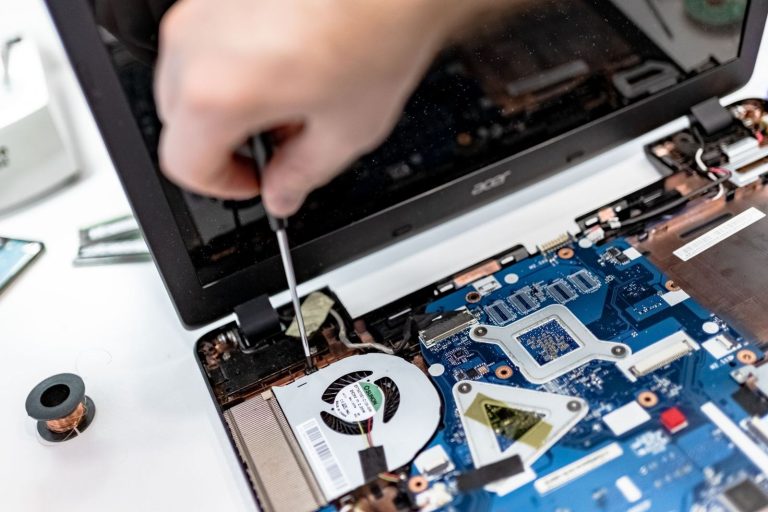
Laptops slow themselves down on purpose when they get too hot (thermal throttling). Dust in the vents, blocked fans, or sitting the machine on a soft bed or couch for hours all make this worse.
- Use the laptop on a hard, flat surface so air can flow.
- Listen for fans running flat-out even when you’re barely doing anything.
- Feel around the vents — if the air coming out is very hot, or the chassis is uncomfortably warm, heat is part of the story.
- Don’t blast compressed air into the machine unless you know what you’re doing; you can push dust deeper or damage fans. If it’s heavily clogged, that’s a good job for an on-site tech.
6. A sensible malware check
Malware and unwanted “optimisation” apps can chew through CPU and show up as constant disk activity or pop-ups. You don’t need to panic — just check properly.
- Windows: run a full scan with Windows Security (Microsoft Defender). Avoid random free “cleaner” tools from ads.
- Mac: Macs aren’t immune. Keep the system updated, and only install software from sources you trust. If something feels off (constant pop-ups, unknown apps launching), get it checked.
- Uninstall anything you don’t remember installing, especially toolbars and “PC booster” utilities.
When to call a pro
DIY is fine when the issue is startup junk, a full drive or a messy browser. Call a technician when:
- The machine freezes, blue-screens, or won’t boot reliably.
- You’ve tried the steps above and it’s still painfully slow.
- You suspect a failing hard drive (strange clicking, sudden file errors, very slow file copies).
- You need data recovered, or you’re not comfortable digging into system settings.
- You’d rather someone come to you than spend a weekend troubleshooting.
That’s exactly what mobile on-site IT support is for — we come to your home or small business, diagnose the slowdown, and fix what we can on the spot. Same-day support is often available, and there’s no extra call-out fee on top of the booking.
When it really is time for a new laptop
Be honest with yourself if several of these apply:
- The laptop is more than about 6–8 years old and still uses a mechanical hard drive (HDD) rather than an SSD.
- RAM is very low by today’s standards (for example 4 GB) and can’t be upgraded.
- The screen hinge is broken, the battery lasts under an hour, or the keyboard is failing.
- The manufacturer no longer provides security updates for that model.
In those cases, repairs can cost more than a solid mid-range replacement. An older machine can sometimes get a second wind with an SSD upgrade and more RAM — a tech can tell you whether that’s worth it for your specific model.
Quick checklist before you buy new
- Trim startup programs
- Free up disk space
- Install OS and app updates, then restart
- Clean up the browser (tabs, extensions, cache)
- Check for overheating / blocked vents
- Run a proper malware scan
- If it’s still crawling — book a tech before you spend on a new machine
Need a hand?
If you’d rather not DIY, Geek Guru 2u offers mobile on-site IT support for homes and small businesses — Windows and Apple, Wi‑Fi, printers, NBN, anti-virus, slow computers and data recovery. Call 1300 160 220 or book a 60‑minute visit online. We’ll sort the slowdown if we can, and give you a straight answer if a new laptop really is the better spend.