Book Appointment Now


Surfshark Antivirus Review: What You Get and Who It Suits
We get asked this a lot: “Windows has built-in protection, so do I still need antivirus?” The honest answer is that some form of malware protection is still essential on every computer and phone. The real question is which one, and how to set it up so it actually helps rather than slowing you down. In this post we take a plain-English look at Surfshark Antivirus: what it includes, who it suits, and how it fits alongside what you already have.

Why antivirus still matters
Viruses haven’t gone away. They’ve just changed shape. These days the threats we see most often on customers’ devices are:
- Dodgy downloads such as “free” software, cracked games or fake updates with something nasty bundled in.
- Scam email attachments and links that pretend to be invoices, parcel notices or bank alerts.
- Spyware and adware that quietly track you, hijack your browser or flood you with pop-ups.
- Ransomware, which locks your files and demands payment.
Good habits (updates, strong passwords, thinking before you click) do most of the heavy lifting. We covered those in our post on simple internet security habits and why we use Surfshark VPN. Antivirus is the safety net for when something slips through anyway.
What is Surfshark Antivirus?
Surfshark is best known for its VPN, but it also makes an antivirus app. One important point up front: Surfshark Antivirus isn’t sold on its own. According to Surfshark, it only comes as part of the Surfshark One bundle, which also includes:
- Surfshark VPN, which encrypts your connection and hides your IP address
- Alert, which notifies you if your email, ID or card details show up in a data leak
- Alternative ID, which gives you a spare online identity and proxy email for sign-ups
If you’d like to look at the plans yourself, you can check out Surfshark One and its antivirus here. Pricing changes often, so check current pricing on Surfshark’s site before you buy.
What it actually includes
Here’s what Surfshark lists on its own antivirus page:
- Real-time protection: apps and files are scanned as you download, install and use them.
- Scheduled, quick and full scans: you can schedule scans down to the minute and exclude files or folders you trust.
- Webcam protection: lock your camera and get an alert if an app or website tries to use it without permission.
- Cloud Protect and frequent updates: Surfshark says its virus database updates every 3 hours, with cloud scanning aimed at brand-new (zero-day) threats.
- Up to 5 devices covered for antivirus.
- Lightweight design: Surfshark says it’s built not to hog your CPU or memory.
Supported devices
- Windows 10 and later (not Windows on ARM, such as some Surface and Snapdragon laptops)
- macOS Big Sur (11) and later
- Android 10 or later (64-bit devices only)
iPhone and iPad aren’t on Surfshark’s antivirus compatibility list, so don’t count on it for those.
Honest pros and cons
Pros
- One subscription covers antivirus, VPN and leak alerts, so there are fewer apps and bills to juggle.
- A simple, friendly app that suits non-technical users.
- Webcam protection and flexible scan scheduling are genuinely handy.
- Works on a mix of Windows, Mac and Android devices in one household or small office.
Cons
- No standalone option. If you only want antivirus, you’re paying for the whole bundle.
- No iPhone/iPad antivirus, and no support for Windows on ARM.
- It’s a newer name in antivirus than the long-established security brands.
- Businesses with central management or compliance needs will probably want a dedicated business security product.
Who it suits
Surfshark One makes the most sense if you already want (or already use) a VPN and would like antivirus and data-leak alerts in the same package. It’s a good fit for families, home users and sole traders with a few Windows, Mac or Android devices.
Quick setup steps
- Sign up for a plan that includes Antivirus (Surfshark One).
- Download the Surfshark app on your Windows PC, Mac or Android device and log in.
- Open the Antivirus section and switch on real-time protection.
- Run a full scan first, so you start from a clean slate.
- Set a scheduled scan (weekly suits most people) at a time the computer is usually on.
- Turn on webcam protection if you want camera access alerts.
- Repeat on your other devices, up to the limit.
How it fits with Windows Defender
Windows already comes with Microsoft Defender, and it’s a solid baseline. The golden rule: don’t run two real-time antivirus programs at once. They can clash, slow your computer to a crawl and even block each other.
- When you install a third-party antivirus, Windows normally turns Defender’s real-time protection off by itself. Check Windows Security > Virus & threat protection to confirm only one is active.
- Uninstall any old antivirus (including expired trials that came with the computer) before installing a new one.
- Keep Windows Update and your browser up to date. Antivirus doesn’t replace updates.
Signs you might already be infected
- Sudden slowness, constant fan noise or crashes for no clear reason
- Pop-ups, new toolbars or a browser home page you didn’t choose
- Your antivirus has been switched off and won’t turn back on
- Friends getting strange emails or messages “from you”
- Files that won’t open or have odd new extensions, or a ransom note
When to call a pro
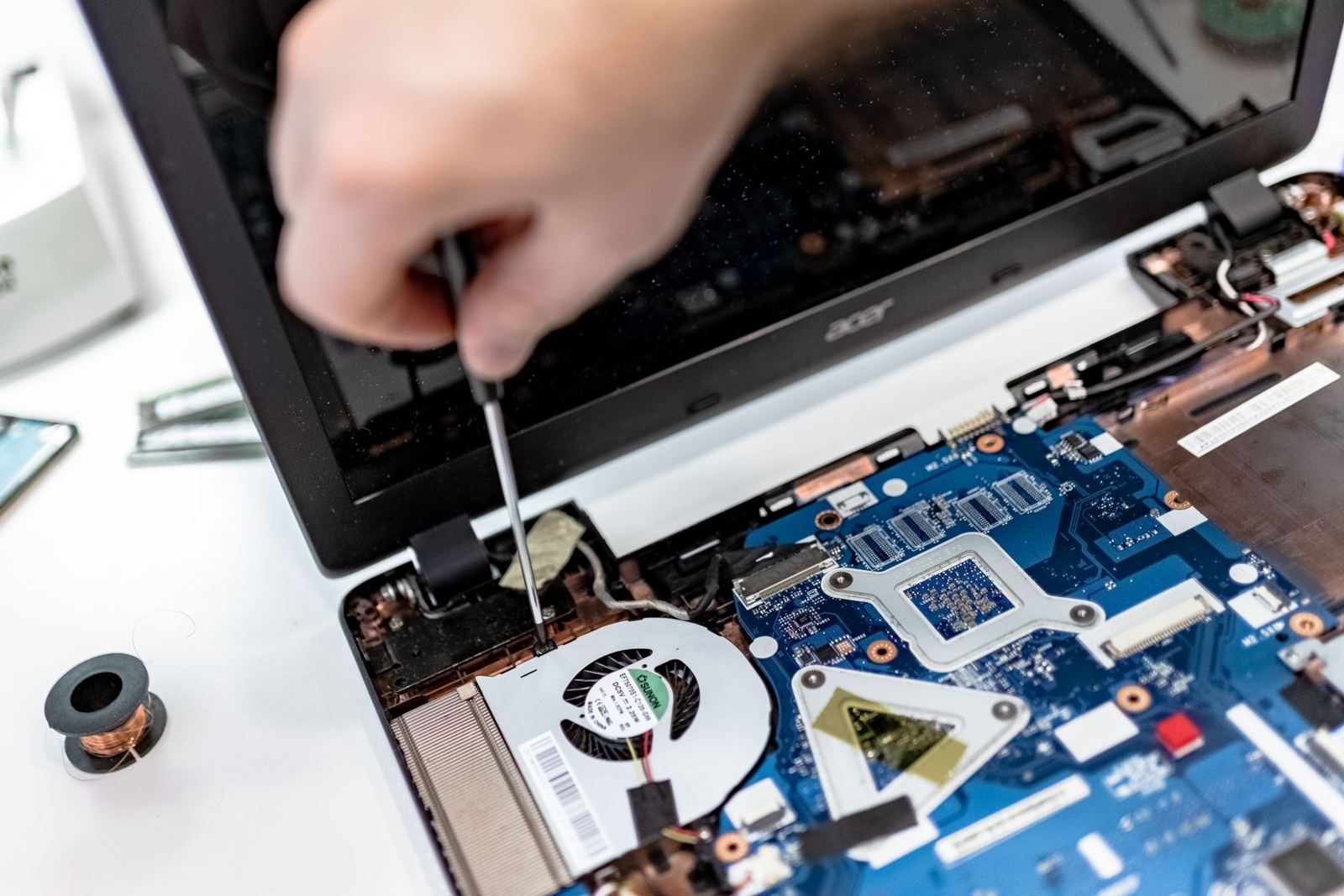
If you see a ransom message, think your banking details have been exposed, or a scan keeps finding the same threat, stop using the device for banking and get help. Don’t pay a ransom and don’t call numbers in pop-up “Microsoft support” warnings; those are scams. If a device holds important photos or business files, it’s worth getting a professional to clean it up safely and check your backups.
Need a hand? Geek Guru 2u comes to you
Geek Guru 2u provides mobile, on-site IT support for homes and businesses. We help with virus and malware removal, setting up antivirus properly (without doubling up), slow computers, WiFi, NBN, printers, Windows and Apple devices, and data recovery. Same-day support is often available, with no extra call-out fees.
Call 1300 160 220 or book a time online. You can find out more about us on the Geek Guru 2u homepage.
Ready to try it yourself? Get Surfshark One with Antivirus.
#AffiliateLink